
A barcode printer is only as useful as its ability to receive data, and that makes connectivity one of the most consequential choices a buyer makes. Two Xprinter models can share identical resolution, print speed, and media handling yet suit completely different workplaces simply because of how they connect. A printer tethered by a single cable works beautifully at one counter and becomes an obstacle in a warehouse with multiple packing stations. Understanding what each connection type offers, and where it tends to fall short, makes it much easier to choose a machine that fits the way your team actually works.
Why Connectivity Deserves Serious Attention
Connectivity tends to be an afterthought during the buying process, overshadowed by print quality and price. In practice, it determines how many people can use the printer, where it can physically sit, and how much time staff spend walking back and forth to collect labels. A poorly chosen connection creates daily friction that no amount of print resolution can offset. It also affects troubleshooting, since network issues and driver conflicts behave very differently from a loose USB cable. Thinking through connectivity before purchase prevents the frustrating situation of owning a capable printer that cannot be placed where it is actually needed.
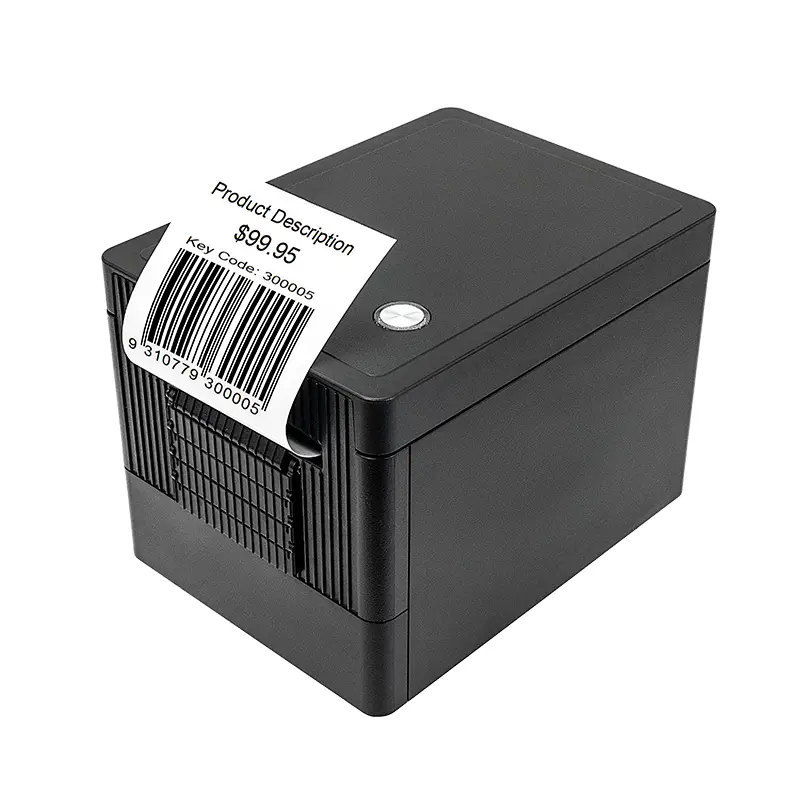
USB Connections for Simple, Direct Setups
USB remains the most common and least complicated way to connect an Xprinter barcode printer. It requires nothing more than a cable between the printer and a computer, which means no network configuration, no IP addresses, and no wireless credentials to manage. For a single checkout counter, a small stockroom, or a back-office packing bench, USB delivers dependable performance with minimal fuss. The limitation is equally clear: the printer serves only the machine it is plugged into. If two employees need to print from different computers, USB alone will not solve that problem, and sharing becomes a matter of physically moving the cable or upgrading to a networked model.
Ethernet for Shared Network Printing
Ethernet connections allow an Xprinter printer to join the local network, which means multiple computers can send jobs to a single machine. This is the natural choice for warehouses, larger retail floors, and fulfillment centers where several workstations generate labels throughout the day. Once configured with an IP address, the printer behaves like any other network device, and jobs queue in an orderly fashion rather than requiring someone to hand over a cable. Ethernet also tends to be more stable than wireless in environments with interference or thick walls. The trade-off is a physical cable run, which may require planning if the printer sits far from the nearest network point.
Wireless Options for Flexible Placement
Wi-Fi and Bluetooth connections remove the constraints of cabling entirely, which opens up possibilities that wired setups cannot match. A Wi-Fi enabled Xprinter printer can sit almost anywhere within network range, making it useful in stockrooms, pop-up retail spaces, and buildings where running cable is impractical. Bluetooth serves a different purpose, typically linking a printer to a tablet or handheld device carried by a staff member on the move. Wireless connections introduce variables that wired ones avoid, including signal strength, interference, and occasional dropouts, so they work best when the network is well configured and the printer stays within reliable range.
Matching Connectivity to Real Workflows
The right connection depends entirely on how labels are generated in your operation. A boutique with one register and one computer has no reason to configure a network printer, and USB will serve it perfectly for years. A warehouse with receiving docks, packing stations, and inventory clerks needs Ethernet so labels can be produced wherever the work happens. Field staff performing stock counts on tablets benefit from Bluetooth, while a business operating across multiple rooms may find Wi-Fi the most practical compromise. Rather than choosing the most advanced option, choose the one that matches the physical layout and staffing pattern of your business.
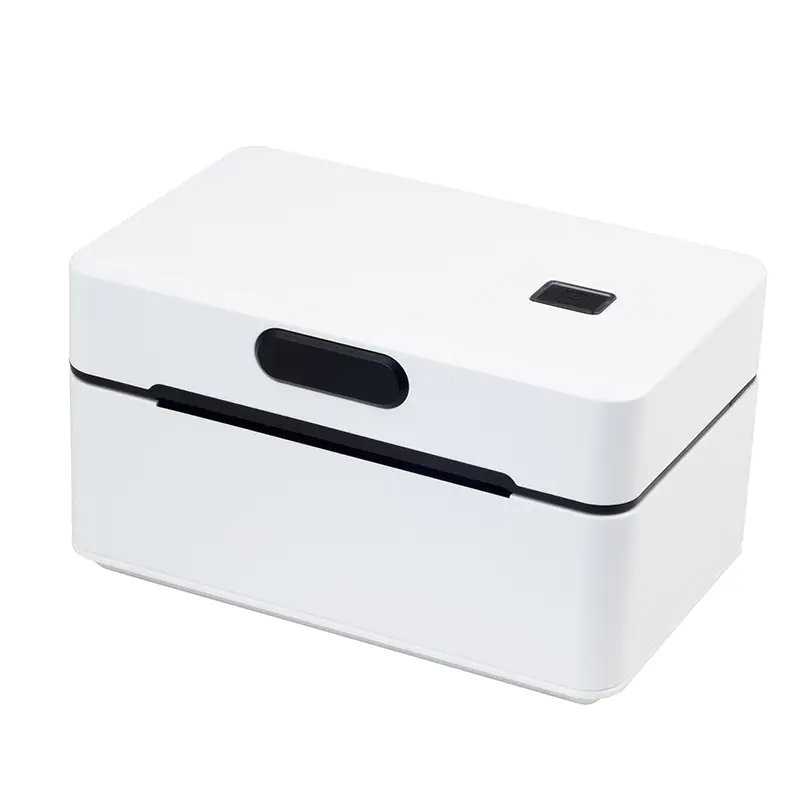
Combining Multiple Connections in One Printer
Many Xprinter barcode printers support more than one connection method, which is often the most practical arrangement. A model with both USB and Ethernet can be set up directly during installation and then moved onto the network once everything is verified working. Printers with USB plus Bluetooth allow wired operation at a fixed station and wireless printing when a handheld device is in use. This redundancy is genuinely useful, because it provides a fallback when a network hiccup occurs and gives businesses room to grow without replacing hardware. When comparing models, checking which combination of ports is available often matters more than which single connection is listed first.
Practical Tips for Reliable Connectivity
Regardless of which option you choose, a few habits keep connections stable. Use quality cables for USB and Ethernet runs, since cheap cables cause intermittent faults that are difficult to diagnose. Assign a static IP address to network printers so jobs do not vanish when the router reassigns addresses. Keep wireless printers within reasonable range of the access point and avoid placing them behind metal shelving. Update drivers when new versions appear, particularly after operating system updates. These small measures prevent the majority of connectivity problems and keep the printer doing its job without anyone thinking about how it is connected.